Paper Doll
How to Avoid or Minimize Probate: Trusts, Organizing Estate Information, and Helpful Resources
Previously on Paper Doll‘s “I don’t you don’t want to think about death but the paperwork is important” series:
- How to Avoid or Minimize Probate: Paper Doll’s Guide to Getting Started
- How to Avoid or Minimize Probate: Organize Your Beneficiaries, POD Accounts, & More
we looked at what probate is, how the process works, and the reasons why you want to avoid it as much as possible. Then we looked at two overarching categories (joint ownership and beneficiary transfers) for inexpensively and easily organizing your assets to avoid probate.
Today we’ll round out the options for avoiding or minimizing probate, clarify some issues regarding wills and their role in the probate process, detail how to organize your estate information to make the transition smoother, and share additional resources to ease estate planning.
WHAT IS A TRUST?
You’ve probably heard a lot of terms bandied about regarding trusts. Because (and I realize I’m repeating myself), I’m a professional organizer and not an attorney, we’re going to stick to the basics for educational purposes; this is not legal advice.
To create a trust, you’re going to need a lawyer’s assistance, which means it’s going to cost more money than the probate-avoiding methods we discussed last week.
Revocable Living Trusts
A revokable living trust is a stellar tool for helping you avoid or at least limit probate.
Think of a trust as similar to a suitcase or basket into which you place your assets. You transfer ownership of your assets — which can be tangible, like a house or a car, or intangible, like investments or bank accounts — into the trust. Instead of you being the owner of these assets, the trust owns them as a sort of spin-off variation of you. Think of it as the Trust of You.
The Trust of You is a completely separate legal entity from the actual walking-and-talking you, and once you transfer ownership, you don’t own your house (for example), but the Trust of You owns the house. It seems silly, but from a legal perspective, it’s powerful.
Throughout your life, you are the (initial) trustee, which means you still maintain total control over what happens to whatever assets you place in the trust. You can buy and sell stock in your portfolio, add a deck to the back of your house, or move money from your checking account to the savings account. It’s just all “owned” by a legal entity that is not you, but it’s controlled by you.
The key is that you name a successor trustee. The role is somewhat like the role of executor, except you don’t have to get the court involved or fill out a lot of excess paperwork. The job of the successor trustee is to follow your instructions for distributing the assets within the trust. That can mean parceling things out to the relatives and friends you’ve named, or the successor trustee may maintain ownership for their own lifetime, until it passes to the next successor trustee(s).

Trust Photo by Joshua Hoehne on Unsplash
When you set up a trust document (which the lawyer may call an instrument), you state:
- what property or assets are going into the trust
- who is the grantor (or settlor, or trustor), the person establishing the trust document
- who is the trustee, the person (or people) with the authority to manage the assets in the trust
- who is the successor trustee, the person who will distribute assets in the trust when you (or you and your co-initial trustee) depart the earth
- who are the trust beneficiaries, the individuals or entities who will receive the property after you’re gone
- and whether there are other trust terms, such as whether and how you can amend or revoke the trust.
You may also want to figure out what assets should be used to pay the eventual taxes on your estate.
With this document in place, you then “fill” the trust by transferring property from your name into the trust’s name.
So, your bank account will no longer be in the name of You, but the Trust of You; the deed to your house and the title to your car will be transferred from your name into the name of the trust, and so on. (Because random tangible assets like your fancy-pants jewelry and artwork (and your less fancy-pants possessions like, well, pants (and other clothing) — or furniture, or whatever — don’t have ownership documents, you can just list the property in the trust document as saying it’s owned by the trust.)
And everything that goes into the trust will be called the “corpus,” which is Latin for “the body” of the trust; you may also hear it called the trust estate, the trust property, or the trust principal. The point is, it’s your stuff until you (legally) drop it in that theoretical basket/suitcase, at which point the stuff belongs to the trust. Got it?
Once you shuffle (or tango) off this mortal coil, the successor trustee will need to:
- get a written verification of the market value of real estate held in the trust as of when the grantor (remember, that’s you) died. This is for tax purposes, because as you recall, the two things that are guaranteed are death and taxes.
- do paperwork to finalize the transfer of the assets in the trust
- give all of this trust information to the beneficiaries of the trust.
Why aren’t trusts subject to probate?
Because, from a timey-wimey, wibbly-wobbly, Jeremy Bearimy legal hocus-pocus perspective, technically, none of the assets inside the trust are yours.
Are they actually in a basket or a suitcase? Nope. It’s all just a hand-wave-y legal maneuver that lets the successor trustee transfer the assets from inside the trust to your heirs/beneficiaries without courts getting involved.
Not to sound like a three-year-old, but whyyyyyyyyyy can you do this? Because somewhere along the way, rich people agreed to make it easier on themselves, and now we non-rich people get to take advantage of the situation, too. Except, again, you’ll have to pay Lawyer Dude III, Esquire some money to get it all set up, so it’s not going to the be the first (or second) choice for many people looking to avoid the perils of probate.
Other than probate, what are the other advantages of a living revocable trust?
A revocable living trust is nifty because it provides flexibility. You can put anything in the trust, take anything out of the trust, do the hokeypokey and turn yourself around, because throughout your life, it’s under your control. Everything inside of the trust is yours to do with as you wish, aside from the fact that in (legal) name only, it doesn’t belong to YOU but the Trust of You.
It’s a living revocable trust, because it’s created while you are alive, and it’s a revocable trust because you can revoke it (that is, take it back, or revise the included property) as long as you are alive.
You can also maintain privacy. While a will becomes public record after probate, the terms of a revocable trust is private, both while you’re alive and after. Your financial holdings and your choices regarding how you distribute your assets will stay confidential!
Additionally, if you are alive but seriously incapacitated — if you suffer an illness or are injured — your successor trustee can act on your behalf to manage your trust assets, per your instructions. Remember last week’s example of the husband of the woman with dementia who would have needed a court-appointed conservatorship to sell a home owned in joint tenancy? That wouldn’t be necessary if they held their home in a trust.
The main thing to know is that setting up a revocable trust allows you to distribute assets smoothly, the way you want, without delays due to probate or fights among your beneficiaries.
What are the disadvantages of a living revocable trust?
- You have to fund the trust properly — If you don’t transfer the assets into the trust correctly, it’s as if you didn’t do it at all, and the assets will have to go through probate. (Lawyer! STAT!)
- Living revocable trusts don’t reduce estate taxes — There are no tax benefits to a revocable trust. (There are potential tax benefits to having an irrevocable trust, one that you can’t change during your life, but that’s too complicated for the purposes of this post.)
- You don’t have any asset protection — Because you have control over assets while you’re alive, creditors can sue and come after the assets. (This is another case where a irrevocable trust can offer extra protection.)
Who shouldn’t get a living revocable trust?
It might not be right in the following cases:
- If your property isn’t extensive, a trust may be unnecessary overkill. The methods we discussed last week may suffice, saving you time and money.
- If you don’t have someone trustworthy (like a spouse, sibling, adult child, or trusted friend, or relative) to oversee a trust after your demise, it’s not the best option.
- If you have oodles of debt, probate has the advantage of providing a cut-off date after which creditors can’t file claims against your estate. Living trusts don’t have any such cut-off date.
- If you’re worried about long-term care and Medicaid planning, an irrevocable trust may be a better option to protect you and your family.
What’s an irrevocable trust?
An irrevocable trust is like a revocable trust except that once the grantor (the one setting it up) transfers ownership of assets into the trust and funds it, nothing can be changed, revised, amended, or terminated, at least without a court order or the agreement of all beneficiaries.
So where does a will come in?
You may be wondering, if you’ve set up joint ownership, beneficiaries, POD/TOD accounts, deeds, and titles, and/or maybe even a trust, do you still need a will?
First, it’s important to know what your will can’t do.
ASSETS YOU CAN’T BEQUEATH BY WILL
A will controls property in your name, with no designated beneficiary and no automatic transfer mechanism. When you die, the will controls your probate assets. Your non-probate assets transfer by deed, title, contract, or named beneficiary.
The options we’ve discussed these past few weeks for easing probate prevent you from bequeathing the following assets by will. (Note: this is not all-inclusive. You daughter-in-law the cardiothoracic surgeon may be an asset to the family, but you can’t bequeath her to your best friend.)
- Life insurance policy proceeds for which you’ve already named a beneficiary
- Funds in retirement accounts, including pension plans, 401(K) plans, IRAs (of various types), or other retirement plans. Again, you just name a beneficiary.
- Money in a bank account designated as Payable on Death (POD)
- Stocks, bonds, and other securities held in beneficiary or Transfer on death form
- Real estate named in a Transfer on Death (TOD) deed
- Vehicles (and not just cars) held in beneficiary form, also called in Transfer on Death form
- Any assets or property you own in joint tenancy with your spouse or other individuals. As discussed last week, related ownership might be called tenancy by the entirety, like if you and your three college roommates buy a house, or community property with right of survivorship with your spouse or life partner. Remember, in such cases, your share of whatever your owned goes to the surviving co-owner(s).
- Assets/property that you’ve transferred to a living trust
Last Will and Testament Photo by Melinda Gimpel on Unsplash
EVEN IF YOU AVOID OR LIMIT PROBATE, YOU STILL NEED A WILL
It’s easy to think that if you set up beneficiaries for all of your securities, and set up POD status for your bank accounts, get TOD deeds for your house and car or set them up for joint tenancy with right of survivorship, and even have a revokable living trust, you can skip having a will. Don’t do that!
Wills are not just for distributing your goodies. They serve other purposes:
- If you have underage children or older dependent children with disabilities, you need a will to name a guardian (and provide guidance for that guardian). However, even if you don’t have children, or your kids are well established in adulthood, there are other reasons to have a will.
- If you acquire any assets after you set up your trust but before you revise it (or cease to exist), having a will and an executor means that you still have a say regarding how anything outside your trust gets distributed. This also helps if you get a gift or an inheritance that hasn’t yet gone through probate at the time you die, meaning you couldn’t have put it in a trust or named a beneficiary. In such cases, your will has a residuary beneficiary, a person named in the will to get everything else you own that isn’t left to any other beneficiary. And if you don’t have a will, state law determines where any of these “bonus” assets go. Do you want your state deciding something like this?
- If you have a small estate, a will makes the Small Estate Affidavit process that we discussed two weeks ago easier on your heirs.
WHY YOU NEED TO PLAN YOUR ESTATE
As you’ve seen from the past few weeks, as much as none of us want to think about death, avoiding the process may make us feel better in the short term, but it creates a lot of trouble for everyone we love after we depart. Here are some pretty compelling reasons to work through the issues.
Avoid an Unpleasant Treasure Hunt
Starting the process right now begins with finding the accounts, the investments, the insurance policies, the deeds, and the titles. Why make your executor waste time searching and waste money paying for documents you already have?
Keep the Wrong People from Becoming Heirs
If you don’t have a will that specifies who gets what, and you don’t name beneficiaries or do the paperwork for joint tenancy or setting up trusts, and you don’t keep all your paperwork annually monitored, the wrong people will end up being beneficiaries of your largesse.
Recently, a close friend’s sister-in-law died. Although her brother and his wife had been married for a few years, various situations kept her from prioritizing making a will, changing her beneficiaries, and even modifying her Power of Attorney documents for healthcare and finances. When she suffered a tragic accident, instead of her husband making the decisions for her care while she was alive, the duty fell to the relative she’d named as healthcare proxy before they’d ever married. Now that she’s gone, her estate will be distributed according to a combination of an out-of-date will and the decisions of someone else; her husband must either accept what happens or fight the executor’s decisions while still in the throes of grief.
If you don’t update wills, beneficiaries, and executor paperwork, the ex who cheated or the sibling who is no longer among us or the best friend who is no longer best will be granted power that you did not wish them to wield, or which they can no longer wield.
Of course, it’s not just money. The person you named to be guardian of your child(ren) 10 years ago may not be the person you’d want now.
Eliminate Confusion and Prevent Feuds
If you don’t plan your estate and keep everything updated, you leave people guessing about what you wanted. With uncertainty comes unpleasantness and infighting. That’s not the kind of legacy you want to leave.
Empower yourself and your loved ones by organizing your information so that you can make the best decisions about your estate plans and make it easier on your executor and heirs.
ORGANIZE YOUR ESTATE INFORMATION
The easiest way to make sense of all of the information you need to track is to create a spreadsheet of all of your assets.
Create a column for each piece of information for financial or tangible assets:
- Asset name — for example, “Personal Checking Account at Chase” or “Roth IRA”
- Account numbers for each asset
- Asset location — for example, the address of the property, the transfer agent for stock, the name of the life insurance company
- Contact information for the whoever manages the asset
- A description of whatever ownership documents you have
- The location of the ownership documents in your home, office, the cloud, etc.
- Beneficiary names — to whom you’re leaving each asset
- How the item is set it be transferred — by named beneficiary, POD, TOD deed, trust, etc.
- Other notes that might help clarify the asset for your executor and heirs.
For vehicles, make a separate spreadsheet with the following:
-
- each vehicle you own — remember to include those you own that others use, like your grandkid or housekeeper
- vehicle type (car, jet ski, golf cart)
- make
- model
- year
- vehicle identification number (VIN)
- location where it’s garaged (your house, a city garage, a storage facility) a barn or airplane hanger or marina berth)
- creditor information if you still owe
- location of the title, if you have received it after paying off any loans — If you’ve lost the paper title, apply for a replacement now and save your loved ones the labor and stress when they’ll already be mourning you.
- name of the Transfer on Death (TOD) beneficiary, if applicable
- location of any agreements, like a lease or garage/docking contracts
- location of the keys
Create a row at the top of the document with the date of revision.
Keep a printed copy of the most updated version of this document with your wills and other estate paperwork.
Revisit the document whenever you acquire new holdings, or at least annually to make sure:
-
-
- beneficiaries are still alive
- beneficiaries are still in your life
- documents, keys, and other essentials are still in the same place
-
RESOURCES FOR PLANNING YOUR ESTATE
For bank accounts, life insurance policies, securities, and retirement accounts, speak directly to the company that manages the accounts, and they will walk you through how to fill out the beneficiary forms we discussed last week. For real estate and other tangible items owned in joint tenancy, start with your local county clerk’s office to see whether you can download templates or if you’ll need to consult an attorney.
Professional Organizers can save you time and headaches, locating all of your documents and organizing the information. You may also find it beneficial to speak with a Daily Money Manager.
If someone in your family has already passed and you’re needing additional help, another resource is Professionals of After Loss Services (PALS).
My colleague Seana Turner blogged about Connecticut-based Transference, a company that specializes in helping executors, surviving family members, and overwhelmed Power of Attorney-holders handle financial and legal logistical challenges.
Get Your Sh*t Together (GYST) — This site offers a wealth of advice, checklists, and free templates to help manage all of the details related to completing your estate planning documents, including The Get Your Sh*t Together Essential Checklists.
Ellis Family Guides — Four free, directly downloadable books on getting your affairs in order, living trusts, Social Security and Medicare, and wills, trusts, and estate planning. They require no sign-ups; you don’t even have to provide your email address unless you want to receive an annual email with updated Social Security and Medicare figures.
Estate Exec — This site describes itself as the estate settlement equivalent of what Quicken does to help manage finances. The software promises to walk you step-by-step though all aspects of an estate, with checklists and record-keeping features. It also grants log-in access to the estate’s account to desired interested parties. They have a ten-day free trial requiring no credit card, email, or registration; if you choose to keep it, it’s a one-time payment of $199 per estate, which is deductible as an estate expense.
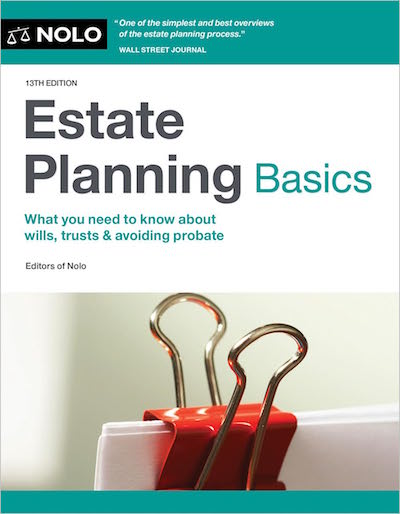
NOLO Estate Planning Basics by Denis Clifford ($21 on Amazon)
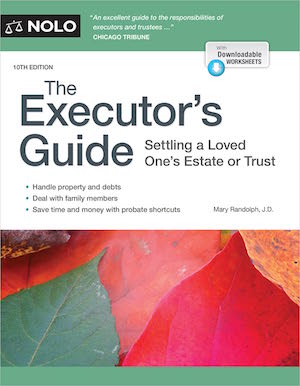
NOLO’s Executor’s Guide: Settling a Loved One’s Estate or Trust ($25 on Amazon)
Childfree Trust — This fascinating newcomer bills itself as the “only comprehensive, nationwide estate solution for Childfree and Permanently Childless people.” They help you create estate documents and promise to be “your professional, fiduciary medical and financial POA, executor, and trustee and ensure your wishes are followed as you wrote them.” They offer members a 24/7 emergency support call center. It’s free to create an account, but membership costs $999/year with locked-in discounts for prepaying for two or three years.
After three weeks of reviewing what probate is, how to avoid it, and how to organize your estate information to ease the process, I hope you’re finding this essential aspect of “adulting” to be a bit less intimidating.
How to Avoid or Minimize Probate: Organize Your Beneficiaries, POD Accounts, & More
Nobody likes thinking about death, but as Benjamin Franklin said, “[I]n this world, nothing is certain except death and taxes,” and as such, we’re better off being organized for the eventuality than trying to wish it away.
Last week, in How to Avoid or Minimize Probate: Paper Doll’s Guide to Getting Started, we began by looking at the essentials: what probate is, how the process is started and then progresses, and then the alternative use of Small Estate Affidavits. Perhaps more importantly, we reviewed (in depth, as only Paper Doll can do), why you want to avoid probate whenever possible, in order to:
- lower (considerable) costs
- save time
- maintain family privacy
- ease the stress felt during a time of mourning
Now clear on why you want to avoid probate, or at least minimize it as much as possible, we come to the heart of the matter. What do you actually have to do to avoid the pains of probate?
HOW DO YOU AVOID PROBATE?
Whether she realized it or not, my maternal grandmother had an interesting way of making sure that probate would be as unproblematic as possible. If you came to her home and managed to praise anything — a teacup, a lamp, a painting — she would hand it to you at the end of the visit!
Giving everything away during your lifetime is an intriguing approach, but not necessary practical. Also, while it reduces what has to go through probate, if you’re giving actual money, remember that gifts exceeding $19,000 per person are subject to federal gift tax.
Rather, there are three main methods for securing assets so they go from your ownership to those you intend to receive them — avoiding probate — without ever pressing an oversized ceramic dog statue into a departing guests hands.
The three categories actions you can take to avoid probate:
- Own assets jointly
- Name a beneficiary through a beneficiary transfer form, Payable on Death form, or Transfer on Death form
- Create a revokable living trust (RLT) in which the trust is the owner of your “stuff” and can be passed to named beneficiaries
Again, as a reminder, Paper Doll is a Certified Professional Organizer® and not an attorney. Nothing in this post series is, or should be taken as, legal advice. Rather, it gives you a jumping off point for approaching the appropriate parties (at your bank, brokerage, insurance company, county government, or your actual attorney) with your wits about you.
Today, we’ll focus on the first two (easier) categories of getting assets into the hands of your loved ones while avoiding probate.
ARRANGE JOINT OWNERSHIP
If you own something (a bank account, a house, a chestnut-colored thoroughbred horse) all by yourself, you have to take a variety of steps to ensure that when you shuffle off this mortal coil, it goes to whomever you wish.
However, if you jointly own something, when one owner passes away, ownership passes to the other owner(s) in a straightforward way. Let’s start with a simple example — bank accounts.
Joint Ownership Bank Accounts
A joint bank account is one jointly owned by two (or more) people. Duh! Most commonly, people open joint bank accounts when they get married so that they can pay for joint expenses, such as mortgages, utilities, household upkeep, childcare, family vacations, etc.
Marriage or cohabitation isn’t the only reason you might have joint ownership of a bank account.

Paper Mommy, wrist in a cast, but with a perfect manicure, 2016
Almost a decade ago, when Paper Mommy broke her wrist, I took over paying her bills by phone; however, the next time I visited Buffalo, we went to her bank so set up checkwriting access for me and for my sister, and my mother found that it made sense to add us as joint holders of the account.
If you set up joint ownership (either when you open an account or subsequently), and then pass away, your joint accountholder(s) will have still access to the funds in the account. They won’t have to present a death certificate to the bank until/unless they take your name off the account, at any future time.
This is a great option for seniors, assuming they’re comfortable with the other joint accountholders (like their adult children) always having access to the money. Obviously, it’s necessary to consider the maturity, stability, and trustworthiness of anyone named as a joint account holder.
Joint Tenancy
Joint tenancy is a probate-avoiding method of owning assets, commonly focused on real estate. When one owner (the “joint tenant”) passes away, the other, surviving joint owner(s) will automatically inherit the portion owned by the person who died, through a legal status known as “right of survivorship.” If you survive — that is, live beyond the time that co-owner ceased to do so — you have the right to own their share.

Little Red Houses Photo by Tierra Mallorca on Unsplash
It’s not magic; there’s paperwork to transfer the property into the name of whomever inherits, but for all practical purposes, this right of survivorship makes it easy to transfer real estate — houses, condos, farms, etc. — without the stress of probate. Joint tenancy can be used to transfer ownership for assets other than real estate, like car titles or a bank accounts, as described above, but let’s keep this simple.
When you buy property or set up ownership, make sure the deed, title, or other paperwork establishes joint ownership, usually by referencing “joint tenancy with the right of survivorship,” though a few states require a little bonus language.
In most U.S. states, joint tenants own equal shares. So, if Ernie and Bert co-own the brownstone at 123 Sesame Street, each owns 50%. (Of course, neither Ernie nor Bert will EVER pass away, so this is merely for discussion purposes. Are we clear? Let’s proceed.)
A joint tenant can’t leave their share to anyone but the other joint tenant(s). So, Ernie can’t stipulate in his will that his share of the brownstone goes to Grover; if Ernie ever did ascend to the great unknown, Bert would own the whole building.
Joint tenancy, especially with real estate, does have some drawbacks:
- Creditors can sue for your joint tenant’s portion. If you jointly own a house with your deadbeat boyfriend, the court could force the sale of the house to reimburse his creditors; you’d get your share of the money (while some or all of his share would go to the creditors), but you’d no longer own your home or have the full buying power that house represented. The other joint tenant can also take out a mortgage on their share to get cash, so you’d now own a house half-owned by the bank!
- You can’t unilaterally un-share ownership. If darling becomes a devil, you’re still bound to them.
- You’re stuck if your joint tenant becomes incapacitated. If a couple own a house in joint tenancy and the wife suffers from dementia, the husband can’t just unilaterally decide to sell (or take a mortgage) to afford assisted living for her. Instead, he’d have to get conservatorship from a court. Messy.
Tenancy by the Entirety
Tenancy by the Entirety (TBE) is very similar to joint tenancy, but it’s only available to married couples.
The other major difference is that neither spouse can sell or otherwise transfer ownership of their half of the property during the lives of the either spouse without the other’s permission.
It’s also only allowed in some states, and for some inheritance purposes. Tenancy by the entirety is possible for:
- All property types (i.e., real estate and personal property) in Arkansas, Delaware, Florida, Hawaii, Maryland, Massachusetts, Mississippi, Missouri, New Jersey, Oklahoma, Pennsylvania, Tennessee, Vermont, Virginia, and Wyoming, and in the District of Columbia
- Real estate only in Alaska, Indiana, Kentucky, New York, North Carolina and Rhode Island.
- And in special situations:
- Illinois — it’s limited to married couple’s primary residence, called a homestead property.
- Michigan — all joint tenancy situations are automatically converted to TBE status upon a couple’s marriage.
- Ohio — TBE is only recognized for property deeds issued before April 4, 1985.
- Oregon — both spouses own the entire property rather than each holding a 50% share
TBE is complicated; get an attorney to help you with estate planning because it can impact a variety of issues, including creating trusts, planning gifts, or Medicaid lookbacks.
Community Property With Right of Survivorship

Miniature Couple Photo by Nothing Ahead
Nine states — Arizona, California, Idaho, Louisiana, Nevada, New Mexico, Texas, Washington, and Wisconsin — are considered community property states for married couples. (California and Washington allow registered domestic partners to do this as well.) Basically, it’s “what’s mine is yours and what’s yours is mine” such that when one spouse dies, the ownership of their community property automatically goes to the surviving spouse.
In these community property states, you can avoid probate by putting “community property with right of survivorship” (or an approximate phrase) on any account registration paperwork, deed, or transfer documents. Check for the exact language your state requires.
Joint ownership can be complicated. Let’s examine variety of alternate ways to transfer ownership that cost little-to-nothing, and require so little effort that you’ll think you’re gaming the system.
BENEFICIARIES / PAYABLE ON DEATH / TRANSFER ON DEATH
You know what a life insurance beneficiary is. You take out a policy, name someone as the beneficiary, and when you’re gone, the proceeds go to the named person. But the concept of beneficiaries can be applied to much more than life insurance!
The key thing to know about these options is that everything belongs to you and stays under your control during your life. Whether an investment or retirement account is listed as having beneficiaries, or a bank account or asset is categorized as Payable on Death or Transfer on Death (TOD), beneficiaries don’t have access until the owner of those assets dies.
Payable-on-Death (POD) Bank Accounts
You can name an individual (or individuals) to inherit money from a bank account when you pass away. The difference between a jointly held account and a payable on death account is that with the former, you all have access to the money at any time; with a POD account, you name individuals who get your money after you’re gone.
Arrange this when you open the account or at any time thereafter. While it’s not difficult, every bank has its own procedures, so be sure to ask.
Rather than calling, you’ll likely have more luck going to your actual branch and asking one of the “desk ladies.” (This is how Paper Mommy and I refer to a non-cashier bank employee with a desk or office. Yes, a man can be a desk lady.) While researching this post, I tried calling Paper Mommy‘s bank branch, but nobody ever answered. Eventually, I called the toll-free number, and after suggesting they check to make sure my mom’s branch wasn’t being robbed (yes, I watch too much TV), I was able to confirm some aspects of the process.
Some banks make it very easy. With Bank of America, you can log into the app, click on the three horizontal lines in the top left corner, select Profile, then Settings, and scroll down to the Beneficiaries option under Feature Settings.
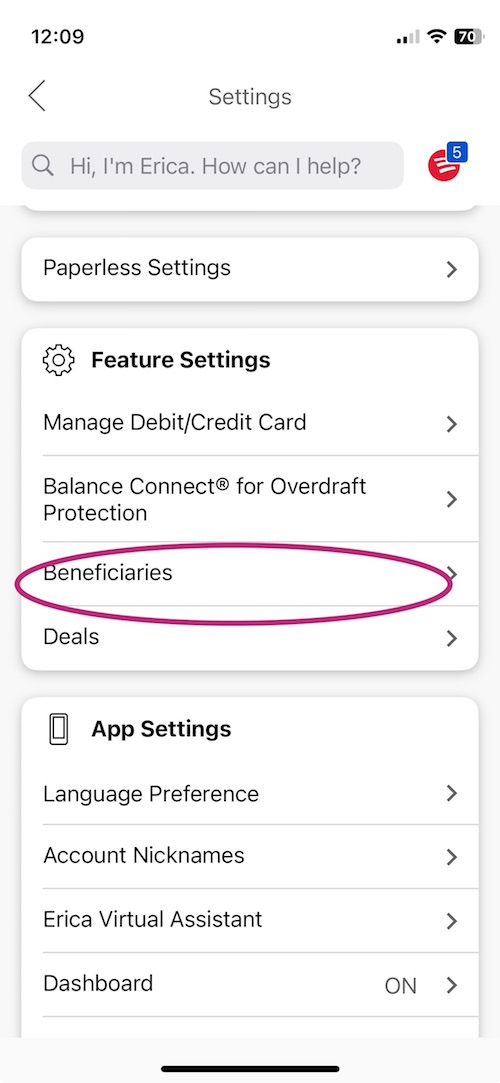
The resulting “Your Beneficiaries” page shows all of your accounts:
- Pick an account
- Click “Add beneficiary”
- Choose the beneficiary relationship:
- Spouse, family member, or friend not on the account, or
- Business, charity, estate, or trust
- Fill in the beneficiary’s full name, birthdate, country of citizenship, and current address or tax ID (Social Security number or EIN)
- Click Save
I accomplished the whole task during one commercial break! However, some banks make it slightly more laborious. Plan to follow some approximation of these steps:
- Go to your bank’s branch. It’s often best to schedule an appointment through your banking app.
- Ask the banker to change your account’s designation to Payable on Death (POD). Note that your bank may call this something else, like:
- Informal Revocable Trust — Unlike formal revokable trusts, which are established by written trust agreements (requiring lawyers and lawyers’ fees), an informal revocable trust account works just like setting up a beneficiary for an insurance policy or investment holding. When the account-holder dies, the “deposit” (that’s the account) “passes” from the owner directly to the beneficiary/beneficiaries without the need for any written trust agreement.
- Totten Trust
- Beneficiary
- Transfer-on-death (TOD) or In Trust For (ITF) or As Trustee For (ATF)
- Provide the following for each beneficiary:
- Full legal name
- Residential address
- Phone number
- Date of birth
- Relationship to you
- Set your intended allocation. The default allocation divides the account balance equally among all beneficiaries still alive when you die.
- Confirm that your signature card is on file.
- Review the form for accuracy and sign it.
If you use an online-only bank, call but be prepared to explain (a few times) what you want and know that you’ll likely have to upload proof of identification to a secure portal.
Once a person dies, the beneficiary can just go to the bank, show the death certificate and their own proof(s) of identify, and obtain the funds.
Advantages of POD Accounts
You avoid probate!
It’s also relatively simple and and cost-free, not counting the value of your time. You don’t need a lawyer; just go to your bank or credit union, fill out the POD paperwork, and you’re set.
POD accounts are revocable. If your one of your kids becomes a meanie, or your sibling becomes a candidate for a political party that turns your stomach, just go to the bank with an explicit written revocation — or just withdraw all the money from the account, close it, and open a different account.
Limitations of POD Accounts
A POD account only applies to bank (or credit union) accounts, like bank deposit or checking accounts, savings accounts, or certificates of deposit (CDs); you can’t set up this kind of POD for real estate, stocks and bonds, or physical property like cars or boats or your Beanie Baby collection.
Even though it might be called an informal revocable trust, it doesn’t safeguard money from creditors the way a trust does. While you’re alive, if you owe personal debts, creditors can still make claims against whatever money is in that account.
Transfer on Death (TOD) Registration of Securities
Per the Uniform Transfer-on-Death Securities Registration Act, you can name someone as the beneficiary of your stocks, bonds, mutual funds, or brokerage accounts. This is known as Transfer on Death or TOD.
You’re likely already familiar with how this works if you’ve ever set up any kind of standard investment account, as listing beneficiaries is generally part of the basic paperwork. Just provide the individual’s name and Social Security number, plus some contact information and you’re done. When you die, the assets in that account will pass to your beneficiaries once the financial institution is notified of your passing.
That said, it’s important to periodically check your beneficiary listings. If you name your spouse as beneficiary and have an acrimonious divorce, or even an amicable one but then remarry, you’ll want to change that beneficiary paperwork. Also, as the years go by, not all beneficiaries may still be alive; if someone passes, update your beneficiary names!
While you aren’t required to list beneficiaries, if you don’t do it, all of your investments will just sit in your account upon your death, going nowhere until your will goes through probate. And without a will, your loved ones will have to wait even longer for everything to be resolved.
You can generally name anyone as beneficiary of your securities investments: a parent, spouse, child, sibling, distant relative, friend, George Clooney — even a business or non-profit/charity. You can also name your trust as the beneficiary.
Note: You may be limited by state property law. Remember those community property states? There, you must get your spouse’s signed, witnessed consent to designate anyone other than your spouse as your primary beneficiary for a TOD for securities.
Retirement Accounts

Retirement Beach Photo by Costa Karabelas
You worked hard for your retirement benefits, so make sure that money goes where you want. When you set up any kind of retirement account — a pension plan, an IRA (of any kind), or a 401(K) — you’re required to list a beneficiary, usually a primary and secondary one.
Whether you live in a community property state or not, you’ll need spousal permission to list anyone except your spouse as your beneficiary.
Again, this isn’t entirely set-it-and-forget-it. People change spouses. Friends and relatives pass away, or just out of our lives. Businesses close or change ownership and charities don’t always maintain their mission. Periodically review your beneficiaries and make changes if necessary.
As with securities, retirement accounts live up to the concept of a TOD designation — they get transferred upon (proven notification of) death. When a you die (eons from now), your beneficiary should contact the retirement account custodian — that’s the financial institution that holds the account’s investments, processes the transactions, keeps all records, documents incoming contributions and outgoing distributions, and oversees the reporting to the IRS and other government agencies, as required.
Your beneficiary should provide a death certificate and their own ID, and then claim the funds directly or transfer the account into their own name(s) so they can maintain those investments, either as-is, or adding/revising the assets in them, just as if they’d opened the account themselves.
Transfer on Death Deeds for Real Estate
In 31 states and D.C., you can avoid probate on real estate by creating a Transfer on Death deed. Those states are: Alaska, Arizona, Arkansas, California, Colorado, Georgia, Hawaii, Illinois, Indiana, Kansas, Maine, Minnesota, Missouri, Montana, Nebraska, Nevada, New Hampshire, New Mexico, New York, North Dakota, Ohio, Oklahoma, Oregon, South Dakota, Texas, Utah, Virginia, Washington, West Virginia, Wisconsin, and Wyoming.
Also, in Florida, Michigan, Texas, Vermont, and West Virginia, a Ladybird Deed, (also called an enhanced life estate) allows Medicaid beneficiaries to protect their home from the Medicaid Estate Recovery Program and pass the house to a loved one as inheritance, rather than to a state Medicaid agency to reimburse long-term care costs.

- Complete the deed — Depending on the state, homeowners may be able to access a free deed template; look for downloadable forms on your county or state website. Otherwise, an attorney can prepare your Transfer on Death deed. The TOD deed requires:
-
- your name and personal information
- a legal description of the property — a single family home, a condo, or a banana stand?
- the beneficiary’s full name and address
- the beneficiary’s relationship to you
- Sign the deed and have it notarized — Legal lingo: you’re the transferor and must sign the deed, but your beneficiary does not need to sign it.
- File it with your county’s land records office — Don’t leave it sitting in a pile on your microwave, because if you die before it’s officially filed and recorded with the governing authority, it’s invalid.
Note: The deed must state that it won’t take effect until your death and that it is revocable by you at any time prior to your death.
Revoking a TOD deed
Speaking of which, as with almost all of these options today, you can revoke your transfer on death deed altogether, or change your beneficiary. Just file a revocation, a written document starting you want to revoke the terms of the beneficiary deed you’ve previously made and recorded (that is, filed).
States vary, so if you were able to download a form to file, look online for a downloadable revocation form. (Some states have sample revocation language in the statutes that legalized TOD; copy that language.) File the revocation at whatever governmental office where you filed the original TOD deed.
You may have to pay an attorney if your state requires a grownup to prepare the document. You also may have to pay a filing fee.
Thus, unlike setting a beneficiary for your bank account, securities, or retirement account, TOD deeds are neither super-quick nor always inexpensive. However, they’re much quicker and less expensive than going through probate.
For those who live in a state not listed above, the best option for avoiding probate is to place your home or other real estate in a trust, which we’ll discuss next time.
Transfer on Death Registration for Vehicles
Got a car? (Or a truck, motorcycle, boat, RV, jet ski, snowmobile, tractor, or airplane?) You may be able set up a TOD registration so that when you die, ownership will pass directly to whomever you wish, avoiding probate.

Little Red Car Photo by Gimmel Magaway on Unsplash
Vehicles are generally registered in the name of one owner, though it can be more than one in the case of co-owners, as we discussed with joint tenancy, above. However, in 15 states (Arizona, Arkansas, California, Colorado, Connecticut, Delaware, Illinois, Indiana, Kansas, Missouri, Nebraska, Nevada, Ohio, Vermont, and Virginia), contact your state’s department of motor vehicles and request a copy of your “car title in beneficiary form.”
Once you register the vehicle, the title certificate will not only list your name as owner, but also the beneficiary you choose. After your death, they go to the DMV with the death certificate and ID, fill out the new title, and pay a transfer fee (ranging from $15-75).
While you’re alive, nothing about naming a beneficiary on the Transfer on Death registration form impacts your ownership. You can sell it to the teenager next door or donate it to 1-877-Kars4Kids. If you get annoyed at your beneficiary for playing bad music on the car radio, just name a new/different beneficiary.
Residents of the other 35 states (and DC) have limited alternatives. Your state may have TOD systems limited to surviving spouses or one’s that apply only to low-value vehicles. Contact your state’s Department of Motor Vehicles to find out what your options are.
As this series continues, we’ll look at setting up trusts and assets you can’t bequeath by will.
We’ll also look at how to organize information about your assets to make things easier for your loved ones, and provide resources for asset-holders, executors, and beneficiaries.
How to Avoid or Minimize Probate: Paper Doll’s Guide to Getting Started
October 19-25, 2026 is National Estate Planning Awareness Week. In 2008, Congress established this as an annual event, in part because so many Americans do not have wills or other estate documents, and often do not understand the elements involved.
We’ve previously talked about important documents to have when someone is alive, in case of emergency, like a:
- Power of Attorney
- Healthcare Proxy
- Advanced Care Directive or Living Will
To refresh your memory on these documents, see past Paper Doll’s classic post How to Create, Organize, and Safeguard 5 Essential Legal and Estate Documents.
Most people understand how these are used during someone’s life. However, there is often confusion as to how things will work after a death.
Recently, while organizing a client’s vital documents, I asked some general questions regarding the basics of the paperwork: filling trusts, naming beneficiaries, changing the status on accounts, etc., and the client said, “Thankfully, we don’t have to worry about any of that. I have a will!”
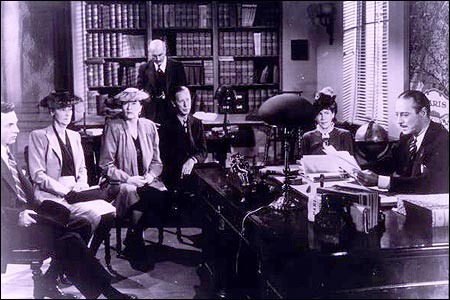
The reading of the will in Monseiur Verdoux (1947), in the public domain
If you watch old movies about such things, there’s usually a death, a sobbing person falling to their knees, a funeral, and then a formal reading of the will, at which point a portly lawyer turns the assets over to whomever is there — loved ones, a mysterious woman in a veil, a beloved dog. In movies, after a few shocking disclosures, everyone leaves the room owning what they were bequeathed.
Yeah, no. That’s not how it works.
In most cases, assets are transferred from the person who is deceased to the new owner(s) in one of two ways, either through a process called probate or as the result of specific probate-avoiding actions, like setting up trusts, joint ownerships, or direct transfers (like registering an asset as Transfer-on-Death or Payable-on-Death).
Over the next few posts, we’re going to cover these concepts, including how to properly set up accounts, ownership, and beneficiaries of assets to reduce the emotional and financial stress on those who are left behind.
WHAT IS PROBATE?
You’ve certainly heard about probate before. You know it has something to do with wills and what happens when someone dies, and that may be the limit of your familiarity.
Most adults who haven’t ever dealt with probate tend to nod sagely when someone else is discussing it, and hope nobody will ask them questions. (In that way, it’s similar to being in an algebra class. Look interested, but not so interested that anyone will ask you to weigh in.) Don’t let embarrassment or uncertainty lead you to miss out on the opportunity of easing the entire process.
In the simplest terms, probate is a legal process where a court supervises the distribution of the assets of a deceased person.
Probate exists because no matter what the will says about who gets what, the government (under the guise of the probate court) has a vested interest in making sure that all of the estate’s debts (if there are any) get paid off before any heirs collects assets. The court also needs to make sure that taxes are paid and that assets are properly transferred.
Probate doesn’t only happen when there’s a will. If someone dies intestate — that is, without having left a will — and there are interested parties (heirs), an estate usually goes through the probate process as long as the value of the personal property of the estate (not counting a house or other types of real estate) is above specific dollar value.
Plus, if someone does die without a will, the probate code determines who gets what. That means, for example, if someone dies while going through a nasty divorce but doesn’t have a will, the court will give a lot of their assets to the not-yet-ex instead of to the non-profit or beloved friends they might have wished to receive those things.
How To Start Probate
As a reminder, Paper Doll is a professional organizer and not an attorney, so nothing in this post series should be taken as legal advice. Rather, it should serve to give you a better understanding of what to expect when you organize your important documents and information to make the estate management process easier.
- Name an executor — The testator (that’s the person making the will — also known as the last will and testament) names an executor, the person who controls someone’s assets after death, carries out the deceased’s wishes, and distributes the assets. The executor can be a spouse, an adult child, a friend, or even an individual hired for the purpose.
- Submit the will to the probate court — The executor submits the original, signed will to the office of the probate court clerk in the county where the deceased person lived. So, if Great Uncle Phil lived in Polk County, Iowa but you’re his executor and you live in Hawaii, you’ll need to submit everything to Polk County.
- Submit a certified copy of the death certificate to the probate court clerk’s office. Typically, the funeral home will provide the family of the deceased with multiple copies of the death certificate. You can always get more from your state’s Office of Vital Records.
- Fill out a sworn petition to probate the will — The word “petition” is just a fancy legal term for request or application. The petition form will include information about:
- the testator (again, that’s just the deceased)
- an estimation of the total value of their assets — Later in this series, we’ll talk about how to organize that information so the amount submitted can be accurate.
- the names, addresses, and relationships (to the deceased) of anyone named in the will, or if there is no will, the same information for any relatives who might be entitled to inherit.
Note: in some counties, the petition to probate a will has to be drafted and filed by an attorney, so check with the Probate Court Clerk before trying to use or submit any online forms on your own.

Probate Lawyer Scrabble Photo by Melinda Gimpel on Unsplash
The court will charge fees for the probate process; if you have to hire an attorney, there will be fees for that, too. Know that that all estate-related fees can be paid (generally, reimbursed) from the deceased assets.
What Happens Next
Once you file all the paperwork with the probate court, you’ll be schedule for a hearing in front of a probate court judge. Unlike anything you’ve ever seen on Perry Mason or Law & Order, this is not likely to have much dramatic effect. Assuming nobody objects to the person named as executor, the judge will officially appoint the named person to do it.
If there are objections (let’s say Big Brother and Little Sister have a longstanding beef), the judge may name a more neutral party, like an attorney, to serve as the executor. Either way, whoever takes on the role with make an oath to “faithfully” pay the owed debts and distributed whatever assets are left over according the wishes the deceased expressed in the will.
The Executor’s Role
Next, the judge will give the executor a legal document called Letters Testamentary, and yes, it sounds like something out of an 18th-century English novel. Just go with it. In some jurisdictions, it may be called letters of administration. It’s just a document authorizing the executor to act on behalf of the estate.
Again, it’s a legal document. Don’t fold it into quarters and stick it at the bottom of your purse with the half-eaten bag of gummy bears. Don’t clip it to the sun visor of your car. Make a folder for it and put in the VIP (very important paper) section of your filing cabinet. Scan it and keep a copy on your phone so you can refer to it when aren’t at your home or office.
One of the rights of being an executor is actually an obligation: to withdraw all the money from the deceased’s bank accounts and then deposit it in a new account for the estate. This way, the executor can pay the debts and distribute any financial assets to the heirs.
Once the executor has notified all creditors, paid all debts and/or filed objections to creditors’ claims with the court, and distributed the assets, the estate can be closed. This involves filling out and signing a form documenting all payments made from the estate and sending it to all beneficiaries named in the will. If everyone gives the okey-dokey and feels the accounting is correct, they also sign the form. Finally, the form gets submitted to the probate court judge for approval and the estate can be officially closed.
Can you see the advantage of organizing your assets so that your estate can avoid, or at least minimize, probate?
SMALL ESTATE AFFIDAVITS AS AN ALTERNATIVE TO PROBATE
A small estate affidavit isn’t the deed to a tiny house.
“Small estates” are those valued at a relatively low amount. Heirs can collect the assets/property without going through a formal probate process by securing something called a Small Estate Affidavit.
Depending on the state, that “small” amount may be $10,000-$25,000, like in Alabama, Georgia, New Hampshire, and Vermont, or it could be what some of us would not consider small at all, like $150,00-$400,000 in states like Arizona, California, and Wyoming. Most states fall somewhere in the middle. For example, in Tennessee, where Paper Doll resides, the limit is $50,000.
There are usually special requirements for filing small estate affidavits:
- the assets must have been owned solely by the deceased. That means that jointly-held assets don’t count.
- real estate is excluded. Almost all states deny the transfer of real estate to heirs via a small estate affidavit.
- there are waiting periods after the date of death. Almost all states require you to wait some amount of time, generally 30-45 days, before the affidavit can be obtained.
- your executor or proxy will have to get their signature on the affidavit notarized.
There’s an additional hiccup with small estate affidavits. During the normal probate process of a well, the probate court determines if there are creditors owed anything for the deceased’s outstanding deaths and makes sure they get paid.
Because there’s no parallel process with small estate affidavits, the individual filling out the affidavit generally has to report any known debts and take responsibility for them. This is why many people who could avoid the costs and effort that probate entails don’t seek this alternative.
It can also just be a bother. Earlier this year, I found that one of my clients was receiving mail at her address regarding two sets of stock holdings in the name of her deceased father. Although he had a will for which my client was the executor, by the time he died (about five years earlier), the family had not known/felt that he had any assets making the probate process with it. He’d arranged for joint ownership of bank accounts, and no longer owned property, as he was living in a nursing home. At the time of his death, the two stock holdings weren’t at the forefront of anyone’s mind.
Had my client’s father named her (or anyone) as a beneficiary for those stock holdings, she could easily have transferred the funds by supplying a copy of the death certificate. However, because he had never named a beneficiary, my client had to jump through several hoops in order to secure (and pay for) a small estate affidavit, submit it to the stock transfer agent, transfer the account ownership to her name, and finally arrange to sell the stock and receive the proceeds. It took time and effort (for both of us) and money just to ensure a transfer of assets reflecting what his will had originally stated — than anything of his was to go to his daughter.
As you can see, not planning ahead can be a headache for loved ones left behind.
WHY YOU WANT TO AVOID PROBATE
I don’t mean to scare you. The emotional weight surrounding death, either of a loved one or of all of our eventual shuffling off this mortal coil, is heavy. Rather than add the unwanted (and unexpected) weight of the financial and legal aspects of passing, it’s better to get to know and understand the big picture so that you can take actions early enough to smooth the entire process.
So, why avoid probate or at least lessen the complexity?
Lower Costs
Probate can be pricey!
Attorney fees, executor fees, appraiser fees and notary fees all add up. Executors can’t always be expected to donate all of the time necessary to accomplish probate tasks. And, sad to say, courts don’t run on good vibes. If you go through probate, you’ll likely have to shell out for:
- Filing fees — While they vary by state and county, most initial filings costs between $200 and $500 for a standard probate petition filing.
- Attorney fees — Probate attorneys generally charge hourly fees, and an “easy” probate may take 30+ hours at anywhere from $200-$500/hour; alternatively, attorneys may have flat package fees for uncomplicated probate. Note, however, some states have statutes governing attorney fees as a percentage of the estate’s gross value. For example, in California:
- 4% on the first $100,000
- 3% on the next $100,000
- 2% on the next $800,000, and
- 1% on the next $9 million!
- Executor fees — Executors have a right to compensation. While family members may choose note to charge the estate for their labor as executors, they have the right to do so. Plus, in states that have statutory attorney fees for probate, executors are due equivalent payment as a percentage of the estate’s gross value.
- Appraiser fees — In order to determine the fair market value of assets, appraisers bring their expertise to the valuation of everything from real estate and businesses to jewelry, antiques, artwork, and collectibles. And appraisals are usually required as part of the formal inventory of an estate’s holdings.
- Accountant fees — If an estate generates income (like from rent, dividends, interest, or business holdings), someone has to prepare the the taxes!
- Notice and publication costs — Executors incur costs for mailing formal notices to creditors and publishing notices to creditors.
- Certified copies of court orders — While these are small charges, generally from $5-$25 per copy, the executor will need several copies to show title companies, banks, transfer agents, and other financial institutions.
The more fees there are, the less value remains in an estate. If you’re Scrooge McDuck with oodles of gold, it may not make a material difference, but for most people, keeping costs down is essential.
Why let an estate’s value be eaten up and depleted by fees you can avoid?
Save Time
Even in the best of times, probate can take months — sometimes years — to work its way through the courts. During the early COVID pandemic, courts were closed, and once they re-opened, with so many employees working from home without access to physical documents, the process was extended.
Even in normal times, during certain seasons the courts slow down as staffers are on vacation and during holidays. It’s not uncommon for it to take months just to get a probate court hearing date in large metropolitan locations.
In addition to court backlogs, probate can be slowed by other factors, like:
- Mandatory creditor notice periods — States requires executors to notify any creditors and potential creditors and provide a window (often 3-6 months) in which to file claims against the estate. (Creditors, like credit card companies, are easy to notify. Other potential creditors may be unknown, so it’s common to post in the classifieds of Penny Saver newspapers, even almost nobody reads them.) Even if the estate doesn’t have any debts, that notice period is obligatory, and the executor can’t distribute any assets until the window closes. The process is really complicated and varies by state, debt type, and method, so if you’re eager to learn more take a peek at Probate Notice to Creditors and Claim Deadlines by State, and then maybe take an aspirin.
- Sales of real estate and other property required by a will or to satisfy debts — And it’s not just the sale. A property first needs to be appraised, and then it may need to be maintained/remodeled/made “safe for habitation.” If the property wasn’t covered by insurance at the time of death, it must get covered before the property can be sold. Except if the will didn’t grant the executor the authority to sell the property, the whole process could require the court’s approval, and that means scheduling (and then waiting, and then having) another hearing, just to be allowed to accomplish these tasks. And then someone has to be willing to purchase the property! Oy! (Where’s that aspirin?)
- Tax preparation and filings — Depending on the size of the estate, a federal estate tax return using Form 706 (including schedules A through W!) might be due 9 months after the person dies. And if the estate, itself, earned any income during that period (like from investment dividends, rental income, or a business), then the estate may have to file a federal income tax return. Plus, some states have their own estate tax and inheritance tax, so preparing returns and waiting for government entities to process them can takes several months depending on how complex the tax situation is.
- Contested wills — You’ve seen the ripped-from-the-headline cable movies. You’ve heard the gossipy stories. Everything seems like it’s going along smoothly and then someone objects to the will. It can be a creditor, an heir, or mysterious “other” and they might challenge whether the will is valid at all. Siblings argue that Grandma had no mental capacity to make the will or that another individual used “undue influence” to get a will revised. Sometimes, someone argues that an old will is real and a newly-found one is not (or vice versa). It can takes years for contested wills to complete probate!
Where you live can also determine how quickly the probate process goes. In the United States, probate takes an average of 9-24 months; if the deceased had no will, the process generally takes 2-4 extra months, although it can be longer. In Florida and Texas, probate may be completed in six months to a year; in New York and California, 1-2 years is more common.
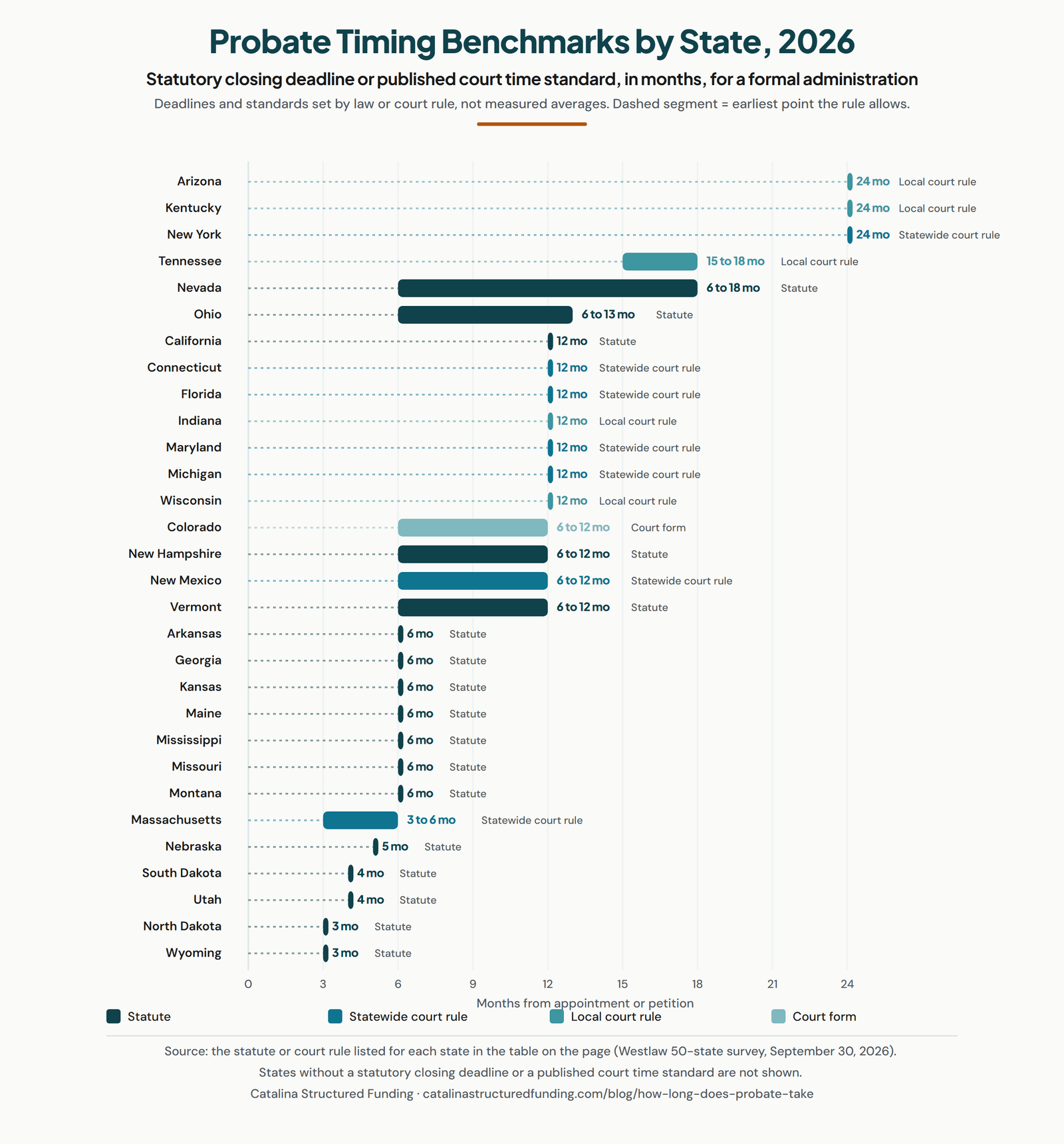
Chart: Catalina Structured Funding, “How Long Does Probate Take? State-by-State Timelines for 2026,” https://www.catalinastructuredfunding.com/blog/how-long-does-probate-take
The longer probate takes, the longer the delay before assets can be distributed to beneficiaries. Doesn’t it make sense to avoid or at least minimize the probate process?
Ensure Family Privacy
Did you know that probate proceedings are a matter of public record?
That means anyone, from your ex-mother-in-law to Gladys Kravitz can access the details of your estate holdings and know who the recipients of assets are. Maybe you’d rather the world didn’t know that Cousin Floyd left you stock in Playboy Enterprises. When you avoid probate, you get to maintain your family’s privacy.
Reduce Stress
Grief is difficult and unwieldy. When families are in mourning, loved ones feel surges of grief at unexpected times; it’s why you feel “waves” of grief, and why it’s important to keep from being pulled under.
Why add to the emotional pain of loss with a complex and lengthy probate period when you can make inheriting many of the assets easy?
Next time, we’ll explore the specific ways you can avoid probate, or at least limit the process, labor, and costs.
In general, there are three main categories of ways to avoid probate:
- Own property jointly
- Create (and then fill and fund) revokable living trusts
- Arrange for beneficiaries (through Payable-on-Death/Transfer-on-Death assignments)
That last bullet may seem like something you only do with life insurance or retirement accounts, but there are easy, no- and low-cost ways to transfer ownership of everything from bank accounts to stock holdings, and even cars and houses, and we’ll walk through them all.
As we go through this series, we’ll also look at how to organize information about your assets to make the probate process (or avoiding the probate process) so much easier for you and your loved ones.
Paper Doll Shares 5 Organizing and Productivity Podcasts to Add to Your Playlist

Recently, I caught up with a friend I hadn’t seen in a while. We chatted about what I’d been doing (working with clients, visiting Paper Mommy, and not blogging) and what he’d been doing (work, complaining about work, and doomscrolling). I mentioned that when the world gets too much for me, that’s my cue to clean out my junk drawer (as in Is Your Junk Drawer a Drunk Drawer? 3 Steps to An Organized Junk Drawer) or otherwise dig into some project that will absorb me, physically and mentally.
He was dubious. (I understand. Not even organizers want to organize all the time.) Then I shared the New York Times‘ Wirecutter column, 118 Things to Do Instead of Doomscrolling.
As an alternative to reading about war, crime, politics, and the whole general <waves arms around in dismay> everything, the piece promotes varioius typical and offbeat tasks. There’s advice to read and write, cook and make art, play games, train pets, learn origami, write a thank you note, and tend to houseplants. The piece also suggests learning to make latte art, chatting with a farmer about their favorite produce, and rewriting the end to your favorite book/play/movie/TV show.
I wasn’t exactly shocked that amid the more entertaining and physically active pursuits, the only organizing tasks that made it onto the list were at #39 (organizing the medicine cabinet) and #43 (do some “soft decluttering”). However, I was surprised to find that podcasts weren’t listed among these uplifting methods of distraction.
Podcasts abound, and it seems as though almost everyone has one! (Paper Doll does not. I like being a guest on podcasts, which is much like playing with someone else’s baby — all fun and very little ongoing responsibility.) I realized that it’s been four years since I posted Paper Doll Picks: Organizing and Productivity Podcasts and Paper Doll on the NAPO Stand Out Podcast: Why Paper Still Matters, so it’s definitely time for an update, especially as so many of my friends and colleagues have entered the podcast space.
Listening to (or watching) podcasts focused on organizing- or productivity-related topics has a variety of advantages. In addition to providing an alternative to doomscrolling, keeping your mind active, introducing you to new resources, and giving you something to talk about when the conversational well runs dry, a good organizing or productivity podcast can help you solve problems you hadn’t considered having achievable solutions.
In this post, I’d like to introduce (or re-introduce) you to some podcasts I think you’ll find appealing.
SIMPLE ENOUGH
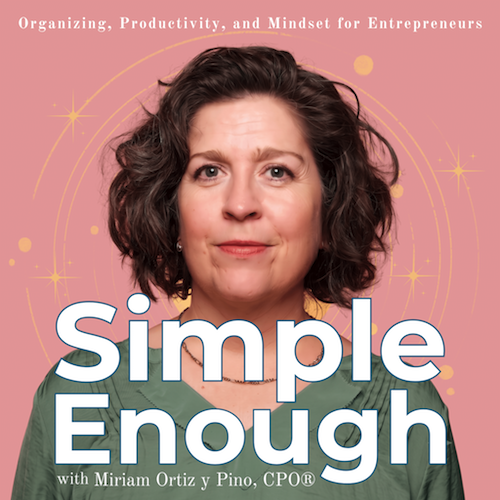
My friend and colleague Miriam Ortiz y Piño of More Than Organized in Albuquerque, New Mexico is a Renaissance woman. Like me, she’s an inaugural Certified Professional Organizer®. She’s also a Money, Mindset, and Marketing Coach, and a Streamlined Money Breakthrough Business Coach, and I had the pleasure of being one of her clients early in the pandemic when we were all trying to figure out the art of the “pivot” during unprecedented times.
Now, as a few months ago, Miriam is a podcaster!
Simple Enough: Organizing, Productivity, and Mindset for Entrepreneurs is the perfect extension of Miriam’s expertise as an organizer and business coach. Here’s her own description of what she brings to her audience:
Do you have no shortage of ideas or ability, but still feel buried under decisions, half-finished projects, clutter, and systems you started but never quite finished? Simple Enough is for entrepreneurs, creatives, and overthinkers who want a calmer, clearer way to organize their space, decisions, mindset, and life – without forcing themselves into someone else’s system.
Miriam takes the conversation beyond the “how do I fix this” and gets to the nitty-gritty of “why did this get like this in the first place?” because she knows that there are always underlying issues, and until you figure those out, the problem (or the clutter) will keep coming back.
If your get-up-and-go has got-up-and-went, and you’re having trouble finding the motivation and clarity to achieve your personal and professional dreams, dial up a few of Miriam’s recent podcasts to see how her perspective can help you find some of your own. Check out some episodes like:
- Organizing Starts with the Dream, not the Stuff
- Why You Can’t Let Go of Stuff: How to Decide What to Keep
- Downsizing Without the Overwhelm
- Company is Coming: How to Get Your Home Ready for Guests without the Panic
- Your Home Office is Working Against You
As Paper Doll, I hold special affection for the episode, How to Organize Paperwork So You Can Find What You Need, but you could also dive into a more iconoclastic episode, The Organizing Rules You Never Need to Follow.
Find Miriam’s Simple Enough podcast at her Substack on the web or in the Substack app, or on YouTube, Apple Podcasts, Spotify, Pocket Casts.
RETHINK TIME, a Podcast by Time Timer
Longtime Paper Doll readers know how much I adore Time Timer as a resource: for teachers, parents, and therapist when working with children, for people with ADHD, and for anyone who has a complex relationship with time. I’ve written about Time Timer’s timers, app, and approach numerous times, most recently in:
- How to Use Timers for Improved Productivity and Focus — Part 3: Tangible Timers
- Paper Doll Organizes Your Shower Thoughts and Keeps You On-Task
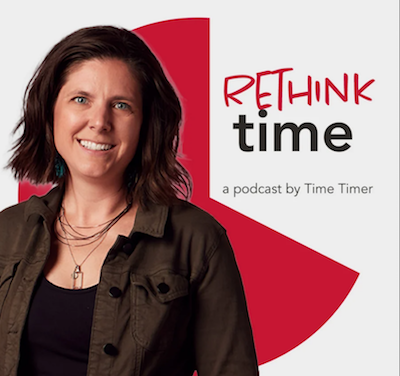
So, I was delighted when I learned that Time Timer was starting REThink Time.
Hosted by Christen Barbercheck, REThink Time looks at time, not merely from the perspective of how to use it more efficiently, but how to make it less challenging and more rewarding. In Time Timer’s own words:
We will explore how we teach, support, and experience time in classrooms, therapy spaces, and everyday life. Whether you’re a teacher, a parent, or struggle managing time yourself, we will be interviewing experts in the fields of education and neurodiversity to share real-life strategies you can use in everyday moments—so time feels more understood to everyone in your life.
I’ve really been impressed with how REThink Time combines expert talk on technology, education, ADHD, neurodiversity, and the wider workplace to provide true understanding and real-world applications of innovative solutions. It’s easy for experts to talk about abstract theory, but I suspect most people hunger for ways to make their lives (and the lives of their children or the people they support) more satisfying. REThink Time delivers!
Although the premiere episode did share the history of Time Timer in From “How Much Longer?” to a Global Tool: The Time Timer Origin Story, this podcast is not a commercial for the company.
- Is Tech Changing Our Kids
- Raising Independent Kids Through Montessori Principles
- Make Back to School Easier
- Why Telling Kids to “Calm Down” Doesn’t Work (This episode explored emotional regulation, mindfulness, and breathing techniques, and while focused on children, offers stellar stress management techniques for adults, too!)
- Neurodiversity at Workplace
I particularly recommend the most recent episode, Outsmart Your ADHD Brain. Christen interviewed Jeff Copper, a cognitive engineer, attention coach, and founder of DIG Coaching Practice about ADHD, working memory, and task initiation.
You can watch on REThink Time on YouTube or listen on Spotify.
SURFING THE QUICKSAND
I first knew Kathy Vines, my colleague, friend, and one-time NAPO-conference roommate, as a professional organizer, productivity coach, and founder of Clever Girl Organizing. And she IS a clever girl!
But Kathy is also a speaker, author, certified smarty-skirt (my own term!), and the host of Surfing the Quicksand. Now in its second season, this GenX-friendly show is, in Kathy’s words,
“a podcast for helping midlife women get a little more organized, productive, healthy, sane, and unstuck, one chat at a time.”
Boy, do I get that!
Organizing our lives means so much more than the tangible “stuff.” It’s the relationships, the career and life paths, the decision trees, and everything you remove or add to your life, or the way you rearrange aspects of it, to make your time on this planet more fulfilling.
(For those of you watching Ted Lasso‘s fourth season, you may have noticed Mae reading Mary Oliver’s moving poem, When Death Comes, over the final shots; rather than being depressing, as the poem name might imply, it’s about living your live to the fullest, and I think we can well imagine that getting “unstuck” from the quicksand is key to that endeavor.)
I can’t say it any better than Kathy’s own media kit. So, if you’re interested in any of the following: caregiving, career shifts, identity changes, health and wellness, financial planning, household responsibility, productivity, wellness, personal development, organization, reinvention, and practical life tools, this podcast is for you.
Season 1 had a whopping 41 fascinating, meaty episodes, and Kathy is already a half a dozen episodes deep into season 2, so you’ve got your choice of topics. You can start at the beginning or pick and choose the episodes that call to you. Personally, I’ve had the most fun with the episodes where Kathy interviewed Paper Doll friends and colleagues (often mentioned in the pages ofthis blog), including:
- Seizing the Moment: A Journey of Serendipity (with Sara Skillen)
- Resilient Kids, Sane Parents (with Leslie Josel)
- Productivity for How You’re Wired (with Ellen Faye)
One of my favorite episodes was a recent one where Kathy sat down with one of my besties, Deb Lee.
Deb’s a genius at productivity, tech, and making a person feel valued and heard, and when I listened to Deb and Kathy chat on the podcast while driving up a mountain to my client day, it was so warm and inclusive that forgot I was listening to a podcast and not on a three-way phone call! Sample the episode, The Onion Years: Peeling Back the Layers of Caregiving.
Surfing the Quicksand is available on YouTube, Spotify, and Apple Podcasts, and you can keep up with the show at the Surfing the Quicksand site above, or on Facebook and Instagram.
As a professional organizer, I’m usually disinclined to promote tangible goods, but if you’re in deep need of T-shirts, hats, water bottles, or totes (or are stymied for holiday gift options), you may want to check out the Surfing the Quicksand merch shop.
OLD FAVORITES — PODCASTS WORTH REVISITING
In addition to these new (or new-to-you) podcasts, I’d love to call your attention and share some love for some other beloved podcasts.
Getting to Good Enough

I was always a huge fan of my friend and colleague Janine Adams’ and Shannon Wilkinson’s Getting to Good Enough show, which was billed as “A podcast to help you let go of perfectionism so you can live life with more ease, less stress and a lot more laughter.”
From 2018 through 2023, Janine, a fellow professional organizer and founder of Peace of Mind Organizing, and Shannon, a life coach, offered up a gentle “You Are Enough” NPR-style hug in a world of loud, pro-achievement, miracle morning, hard-core press podcasts. So, as a recovering Type A+ (who has, over decades, barely chilled to a Type A-), I was crestfallen when Janine and Shannon stepped away from their podcasts booths.
Then, last year, much like my beloved Ted Lasso (which also went off the air in 2023), Janine and Shannon unexpectedly announced that they were coming back! Also like Ted Lasso, Getting to Good Enough revels in finding a compassionate approach to living your life.
If you’ve never listened, you might want to go back to the beginning and alternate new episodes with working your way through the backlog. If you’re excited but didn’t realize the show was back, there’s no time like this cozy autumnal season to get back in the anti-perfectionist groove.
From the very first 2018 episode, Done is Better Than Perfect, to Imposter Syndrome: Why It Happens (and What Actually Helps) to Getting Unstuck After a Mistake, you’re going to find something that floats your boat.
The recent The Beauty of a Good Checklist had me nodding along as I listened and drove, and I soaked up What it Takes to Take a Break at the airport as I jetted off to visit Paper Mommy last month.
I should note while almost all podcasts have show notes worth checking for key points and resources, Janine and Shannon provide particularly good (and organized) notes.
You can watch Getting To Good Enough on YouTube (though only the episodes since the show’s return have actual video of Janine and Shannon), or listen on Apple Podcasts, Spotify, Pocket Casts, or as an RSS feed.
Get Organized With Dr. Frank Buck
I’ve promoted the excellent Get Organized! with Dr. Frank Buck podcast many times in the past (and have been a guest on several occasions), most recently last year in Take Note: Paper Doll’s Guide to Organized Note-Taking (Part 1). Frank’s zippy episodes deliver practical advice at the intersection of productivity, organization, technology, and his original area of expertise, education.
Some nifty episodes recently have included:
- Stop Losing Money to Forgotten Auto-Renewals (My Money Calendar System)
- Time Management for Teachers: 3 Principles That Matter
- How to Make Reading Fun Again (An interview with Danny Brassell)
Frank continues to deliver weekly episodes on all the topics that drew me to share his material, but a recent show, 12 Apps That’ll Make You an Organized College Student reminded me of how great this podcast is with keeping up with both essential principles and new solutions.
You can listen to Get Organized! with Dr. Frank Buck on Apple Podcasts, Castbox, Overcast, Pocket Casts, Spotify, and an RSS feed, but I encourage you to tune in to the show on YouTube, at least when Frank is discussing technology, to get the full effect.
Of course, there are so many podcasts out there to stir your passion for getting organized, being more productive, and keeping you from doomscrolling, and this is only a taste. However, after taking a short sabbatical from blogging in August and September, Paper Doll HQ is aiming for somewhat shorter posts.
Note, I said shorter and not short. I am who I am, and like Ted Lasso, I am built out of words, and will continue to share so, so many of them with you readers. And if this post inspired you to listen to podcasts and think more about Ted Lasso, well, here’s a list of the 18 Best Ted Lasso Podcasts.
It’s good to be back in the blogging groove and to be back with Paper Doll readers again!
The Password for Your Passwords: Understanding ID.me and Login.gov
Are you over it? Do you feel like you’re all prepared, password-wise?
Two weeks ago, in Not Your Mama’s Passwords: Passphrases, Passkeys, and the Future of Logging In, we did a deep dive, examining:
- how the characteristics of a good password have changed over the years
- what it means to have strong passwords nowadays
- all the elements to consider when picking your login credentials (Did I at least convince you that having capital I and lowercase L (I vs. l), and zeros and O’s (0 vs. O vs. o) might be confuse your eyeballs as you age?)
- the advantages of a passphrase over a traditional password
- how to fix weak, compromised, and re-used passwords
- the advent of passkeys and the many reasons why they’re advantageous (and getting more popular)
- what the difference is between 2-Factor Authentication (2FA) and Multi-Factor Authentication (MFA) and how you can use those methods to the advantage of your digital security.
Then last week, in Paper Doll’s Guide to Managing Passwords for the 21st Century, we had a bit of a reality check as to how we can no longer hope to remember our passwords and why keeping them on sticky notes isn’t (and was never) a good idea. We looked at:
- the advantages and disadvantages of analog password management and whom they are likely to serve best
- the advantages and disadvantages of digital password managers (the solution that’s best for most of us)
- the most built-in digital password managers you may already have
- the most popular third-party digital password managers (plus their features and costs)
- essential features of digital password managers, and some bonus features you might want to check out
- resources for learning more about digital password management.
So, I’d get it if you think you know everything there is to know about organizing your passwords for a more orderly digital life.
Except…maybe not quite yet?
Having access to your login credentials and using your fingerprint or FaceID to prove to a website that you have the right to access your digital stuff should be enough. <sigh> But as we go along, for some sites, that’s still not enough.
The question for this point in the 21st-century is: How do you prove that you are really you?
WHAT IS DIGITAL IDENTITY VERIFICATION?
If you’ve tried to log in to Social Security, EFTPS, the Veterans Administration or any of a number of government websites in the last few years, you may already know that having a password isn’t enough. Because of this, in recent years, new kinds of digital identity verification platforms have been developed.
In the simplest of terms, digital identity verification is the process by which you can prove that your identity is real — that you are really you — without necessarily having to interact in person. Instead of a company making you come in for in-person identification — like how you have to go to an airport to interview for TSA Pre-Check — government agencies, organizations, and businesses can now outsource the collection of that biographical and biometric data digitally, remotely, and match it against trusted, verifiable sources.
These outsourced sites require you to jump through some reasonable hoops to sign up and prove your identity so that when you go to log in to your actual destination (like the Social Security Administration), it’s like there’s a drawbridge with a guard asking you to prove that you are who you say you are before you can go any further.
You just have to have the right answers.
The two best-known sites for digital identity verification, particularly for use federal and state agencies, are ID.me and Login.gov.
ID.me
ID.me was started in 2010 by two U.S. Army Ranger veterans. It’s a secure digital identity verification service that has been described as acting “like a driver’s license for the internet.”
Once you prove who you are to ID.me, it won’t help you buy alcohol or get you on an airplane, but it will unlock access to your accounts with government agencies and programs, healthcare portals, and online store discounts that are dependent on you having a particular kind of status.
How to Get Validated By ID.me
To get validated by ID.me, there’s a one-time set-up where you create a single, unique set of login credentials and confirm the sign-up via email, then choose a multi-factor authentication method. (You also get to create a VERY complex recovery code you can use in case you ever lose your device and/or phone number.)
And, of course, you have to verify your identity.
On the plus side, you won’t have to answer those pesky security questions like you used to have to do to get your credit score. (This is a boon to anyone who no longer recalls their address when they were twelve or the lending company for their first car loan.) But you will need the following basic identifying information:
- your email address — Select one that you check frequently and that you can access during the sign-up process. (So, don’t use your work email if you can’t access it from home, or vice versa.)
- your Social Security number — Alternatively, if you do not have an SSN but do have an Individual Taxpayer Identification Number (ITIN), use that.
- your valid state or federal ID, like a driver’s license, passport book or passport card
- a reliable multi-factor authentication (MFA) method — This may be the ability to receive a security code via text message, an authentication app (like Google Authenticator), a security key, or backup code.
- your phone, tablet, or computer with a camera — You will be asked to take photos of your ID and of your face to verify your identity. You may not want to do this at 2 a.m. after you’ve rubbed off half your eye makeup or mussed your hair to the point that you’re no longer recognizable, so consider this before starting the process.
Once you have everything in hand and provide your identifying information, you will be prompted to either take a brand-new selfie or join a brief video call in order to prove that the photo on your driver’s license matches the photo of your face. I hope, for your sake, your driver’s license photo doesn’t look like Nick Nolte’s famous mug shot.
Be ready to create your ID.me password. Yes, you need a password for the site that let’s you log in to other sites with passwords you already have. And yes, I recognize how ridiculous that sounds.
And, of course, you’ll have to abide by wisdom we’ve previously discussed regarding letters, numbers, special characters, randomization, length, etc.
The process is only slightly laborious, fairly painless, and free, and you will only ever have to do it once.
Where Can You Use ID.me?
More than 21 federal agencies and at least 45 state government agencies in the United States use ID.me as a trusted credential service provider to allow you to safely access information, manage your benefits, and help stop fraud. Government agencies using ID.me include:
- Internal Revenue Service (IRS)
- Social Security Administration (SSA)
- U.S. Department of Veterans Affairs (VA)
- Centers for Medicare & Medicaid Services (CMS)
- U.S. Department of the Treasury
- U.S. Department of Commerce
- U.S. Department of Health and Human Services (HHS)
- Patent and Trademark Office
Various individual states use ID.me for their Departments of Labor or Unemployment, Departments of Revenue/Taxation, and Health & Human Services programs, like state Medicaid and SNAP. You can access a list of all federal and state agencies using ID.me at https://www.id.me/government.
But it’s not just the government that wants to verify your identity. Various businesses offer discounts based on status, and that status is built into your provable identity with ID.me. For example, if you go to ID.me and select Shop instead of Government at the top of the screen, you can use your ID.me Wallet to prove your status as a:
- current member of the military
- veteran
- nurse (or other medical professional)
- first responder
- teacher
- student
- government employee
and access a variety of discounts on product categories including clothing and accessories, health and beauty, sports and outdoor equipment, travel and entertainment, lifestyle items ranging from publications to meal delivery to toys, technology and office equipment, home and auto supplies, pet supplies, and delivery services.
Two Ways to Log On Using ID.me
In order to log in using ID.me, there are two main methods. The first represents my own experience, because I like to jump through hoops.
I pay quarterly estimated taxes for my business through the Electronic Federal Tax Payment System (EFTPS). When I first signed up, more than a decade ago, I had to submit an application and then wait for the government to send me a PIN and an enrollment number in the mail. Only once I received it could I create a password, after which, every time I logged into EFTPS to pay my taxes, I would have to provide my email address and password, as well as that PIN.
Then, several years ago, I was prompted to sign up for either Login.gov, ID.me, or a third verification platform that no longer exists. At the time, ID.me seemed the easiest, so that’s what I picked. Now, when I go to EFTPS and start to log in, I’m immediately sent to ID.me, where I log in, and it then takes me back to EFTPS, to use my agency-specific login credentials.
It’s a lot, but it protects me from someone else logging in and paying my taxes for me. (Wait. Tell me again why that would be bad?)
There’s a second method. Because ID.me is considered single sign-on (SSO), an identification method allowing users to log into multiple independent apps and websites using a single set of credentials, you can get to all of the various government agencies (and the aforementioned shops) directly from the ID.me website.
Once logged in there, your ID.me wallet can take you to any federal or state government agency or shop that’s part of the program.
How ID.me Ensures Safety and Privacy
ID.me follows strict federal security rules for consumer authentication set by U.S. Department of Commerce and is approved by the National Institute of Standards and Technology (NIST) as a NIST 800-63-3 IAL2 / AAL2 credential service provider per the Kantara Initiative. (If you think that sounds like something out of Star Trek, well, we’re on the same page.)
ID.me is a private company, not operated by the government. So how does it make money?
ID.me states it does not sell your personal data to advertisers. Rather, ID.me stays afloat by:
- Charging software subscription and verification fees to government agencies and businesses — Government agencies pay ID.me for Identity as a Service (IDaaS) while enterprise-level companies pay ongoing subscription fees or per-verification fees to securely verify their users and prevent fraud.
- Charging individual retailers transaction fees to verify customer groups (like military members, or teachers) so they can securely offer discounts to identity/status-linked audiences.
- Receiving affiliate commissions on anything users purchase through the ID.me Shop.
However, because people have now experienced signing up with ID.me, leading to trust in the name, you can be sure bad guys are pretending to be ID.me.
As always, watch out for fake emails and text messages purporting to be ID.me in order to purloin your data. Every time you use ID.me, check the URL and security padlock icon (the one that Paper Mommy thinks it looks like a purse), and make sure you’re on the real website before typing any personal information.
LOGIN.GOV
Login.gov is a secure, single sign-on service managed by the U.S. General Services Administration, an independent federal agency.
Login.gov allows you to use one username, password, and multi-factor authentication (MFA) method to access participating federal and state government websites. Unlike ID.me, Login.gov is only for accessing government sites, not retail shops or other types of sites.
How to Create Your Login.gov Account
In addition to all the same bulleted items (above) that you would need to set up an ID.me account, Login.gov also requires that you have a US-based telephone number on a plan that’s in your name.
So, if you’re on a family account that doesn’t list your name or your cell phone is owned by your employer, that can be a sticking point, which is why some people prefer ID.me.
Signing up for Login.gov works much the same way as ID.me, although in addition to using the same standard personal information and matching your ID to a photo or doing video check, Login.gov also matches your identity to your credit history and checks government databases.
There’s one more twist. If any part of the verification process for matching your selfie to your face via Login.gov is problematic, you can go to a United States Post Office location in person, smile that 1000-watt smile of yours, and prove your identity to a human being in order to complete the process.
Your Login.gov credentials will allow you to access many of the same government websites as ID.me, including the IRS, the U.S. Department of the Treasury, and the VA, as well as various sites in the Trusted Traveler Programs (like TSA PreCheck application management, Global Entry, NEXUS, SENTRI, and FAST).
SO, WHAT’S ARE THE DIFFERENCES BETWEEN ID.me AND LOGIN.GOV
Login.gov and ID.me are both official secure single sign-on services used by the United States government to access official websites. So, you may be wondering, what are the differences between Login.gov and ID.me?
The main differences are that Login.gov was built and is managed by the federal government to access only government sites, while ID.me is run by a private company that also contracts with private businesses.
Both meet strict federal security rules, but they handle setup and verification differently.
As mentioned, ID.me requires uploading photos of your ID, like a driver’s license or passport, and uses biometric checks like a selfie scan via your device’s webcam or a live video chat with a support agent.
Login.gov is similar in that it uses the same personal information, and biometric scans, but also digs into what the government already knows about you (whatever is in those sneaky government databases and credit bureaus) to check you out. And again, you’ve got an out if your selfie skills are abysmal — just head to the post office.
So, which should you choose?
The answer may be you-specific, or situation-specific.
ID.me is the more flexible choice if you are currently living outside of the United States, don’t have a Social Security number, don’t have a phone plan in your own name, or need specialized verification via video call.
Additionally, ID.me is often required for specific tasks, like if you want to use the IRS tool to get an Identity Protection PIN.
And if you fit one of those special identity/status categories as a current member of the military or veteran nurse (or other medical professional), first responder, teacher, student, government employee, you may want to use ID.me’s Shop to get discounts. (That said, always shop around to make sure that the price of what you’re buying can’t be found for less elsewhere.)
However, there are times when Login.gov might be better. If you’d prefer to avoid facial recognition software or biometric uploads and would rather visit your local post office, Login.gov might be your cup of tea.
But guess what? You might not have to choose. Assuming you live in the U.S., have a Social Security number and U.S.-based phone in your own name, there’s no reason (aside from annoyance at having to use either one at all), that you can’t sign up for both.
But in all likelihood, you will eventually have to sign up for at least one, as an increasing number of government agencies are requiring one of these two forms of identity validation.
SEE ID.ME AND LOGIN.GOV AT WORK
So, let’s say you want to create your brand-spanking-new online Social Security account.
Before 2026, you’d go to SSA.gov and answer a long list of questions about your childhood addresses, cars you used to own, and financial information in your name, just to prove your identity.
Now, when you click to log in, the site will prompt you to either sign in or create an account with either ID.me or Login.gov. You select which you plan to use and then follow the prompts for whichever you choose. For example, ID.me:
or Login.gov:
Once your account is set up, on future visits, you’ll be able to log in by choosing either “Sign in with ID.me” or “Sign in with Login.gov” from the Social Security website and authenticating your identity with your selected MFA method.
It works the same way with any other site (governmental or otherwise) that prompts you to use one of these verification systems.
HOW ABOUT CANADALOGIN, EH?
Are you reading Paper Doll from above the 49th parallel? Welcome, Canadian readers! Did you know that you will soon have your own, nifty single sign-on and identify verification program similar to ID.me and Login.gov?
CanadaLogin provides a simple, reliable, and secure way for Canadians (and those residing in Canada or needing to avail themselves of Canadian governmental agency services) to sign in to the websites for various programs and services of the Canadian government.
It’s designed to “prioritize security, convenience, and usability.” As such, it’s not just a matter of being able to verify identity, but make it easier for people to access the 270+ online services offered by the government of Canada. (And remember, Canada is bilingual! Everything has to be available in English and French!) Apparently, there are more than 60 different access points for these services. So, Canada is moving toward streamlining everything!
Eventually, all Government of Canada online services will connect to a single entry point through CanadaLogin. This will eliminate the need to remember (or even have) a bazillion sets of login credentials. (Paper Doll apologizes for not knowing if there is a metric conversion for bazillion.)
So far, users can only start setting up CanadaLogin credentials with two-step verification through one of three MFA methods:
- a one time code sent as a text message or by voice call,
- a passkey, or
- a security key
Soon, though, CanadaLogin will start adding more kinds of 2FA/MFA methods and other ways to log in and recover login credentials, including through Interac sign-in partners. For readers unfamiliar with Interac, here’s a cheatsheet:
And eventually, Canadians will be getting the same kinds of secure, online identity confirmation options as Login.gov and ID.me, but likely with a charming, polite, Canadian approach.
Currently, Canadians do have access to a mix of identity verification options, including eID-Me, an encrypted digital ID on one’s cell phone. It offers a secure digital wallet, almost-instantaneous identity verification, password-free logins, and high security and privacy. To register for eID-Me, you need a valid Canadian or U.S. passport as well as a Canadian driver’s license or photo ID card.
Canadian residents can also get verified to access identity/status-based (first responders, teachers, etc.) Canadian Shop ID.me discounts.
THE FUTURE OF IDENTITY VERIFICATION
The first post in this series looked at the question, “How do I prove something (an account) is mine?” and found solutions in developing passwords, passphrases, passkeys, etc.
The second post examined, “How do I manage it all security to keep organized and productive?”
And today, we’re answering, “How do I prove that I am who I say I am?” so that, again, we can productively access our online stuff.
It’s not going to stop here.
Just last week, I was asked by the brokerage company for my IRA to set up a digital voice print identifier so that when I call in, there will be an additional level of security.
On the one hand, the process was easy and interesting. I was asked to stand in the middle of a room and turn 360° as I described various things I could see in a long and rambling discourse. (Paper Doll is very good at delivering a long and rambling discourse.)
On the other hand, given what I’ve learned about AI and the ability to spoof our voices and our faces for scams, I can’t say I’m comforted. Of course, when fingerprint identification for phones came out, I have to admit I was a little queasy, imagining thieves stealing iPhones and cutting off people’s fingers, and as far as I know, that never came to pass.
The only thing we know for sure about the future of login credentials, identity verification, management of all of it is that it will continue to evolve, which means we will have to keep monitoring the changes to protect our identities and access credentials with more and more care. Our ability to stay productive online will depend on embracing these methods, even while familiarizing ourselves with the methods will initially slow us down. ‘Twas ever thus.
Do you already have accounts with ID.met or Login.gov? Do you have a preference?
Follow Me